Add-ins and licenses
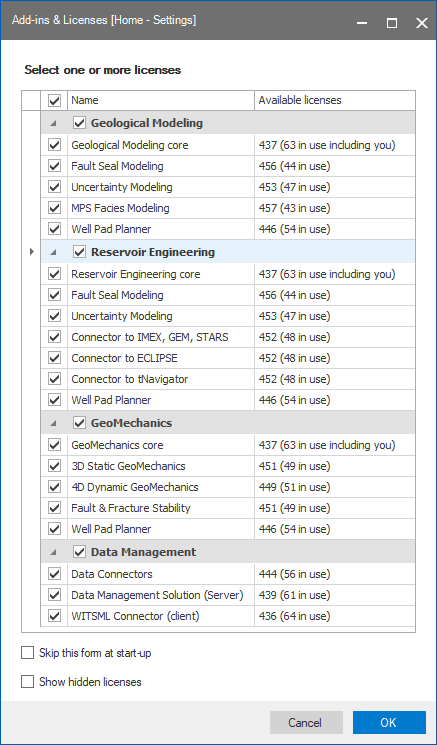
Add-ins and Licenses form click to enlarge
Using the Add-ins and Licenses form (Home > Settings) you can select the workflows and add-ins you wish to be loaded upon JewelSuite Geomechanics application start. To make your selections, a list is presented that contains all of the add-ins and licenses that are available to you based on the type of license you are using with the application and any add-ins you may have installed. In the list, the licenses and add-ins are grouped by workflow or category. In the example above, the Geological Modeling and Reservoir Engineering groups can be seen, with each expanded to show the individual add-ins that are available. You can enable or disable entire groups of add-ins and licenses using the checkbox adjacent to the group name.
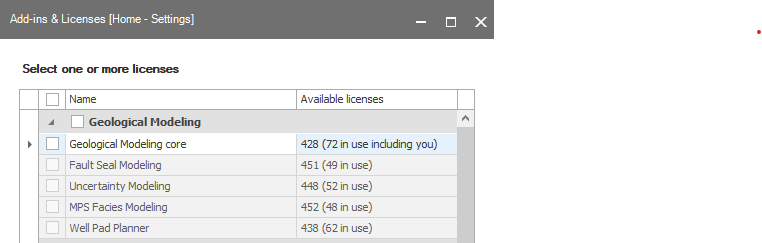
Add-ins and Licenses form showing unselected state. You can only select the add-ins after selecting the 'core' module. click to enlarge
If you are connected to a floating license server, the Available licenses column provides information on the number of licenses in use for the particular workflow or add-in. Hovering over the number opens a tooltip that shows the distribution of the individual license keys that are associated with the workflow or add-in. Those using node-locked licenses will not see the Available licenses column, and will see only list of workflows and add-ins.
Additional options
Skip this window at start-up By default, the Add-ins & Licenses form appears each time you launch the application. Check the Skip this window at start-up checkbox to prevent the Add-ins & Licenses form from appearing each time JewelSuite Geomechanics launches.
Show hidden licenses When checked, the Other licenses group of workflows and add-ins appears at the bottom of the list. This list contains licenses found on your license server and not requested by the application. Also, all product licenses and add-ins that are disabled are shown. These are not selectable, which is indicated by a gray background color.
For any questions or issues related to licensing on JewelSuite Geomechanics, or if you want to add additional modules to your current setup, then contact SoftwareSupport@bakerhughes.com for more information.